Hytera P50
The P50 is the best-supported PoC radio in VoxDMR. It’s the radio the PoC features are developed against and tested on, so it gets hardware integration no other model currently has.
Everything here is Android only. Verified on firmware V1.2.05.004.01.
The radio
| Property | Value |
|---|---|
| Android version | 12 |
| Processor | 32-bit only |
| Display | 240×320, low density, no touch |
The P50 is a 32-bit radio. The standard Android build will not install on it — you need the 32-bit APK from Installation.
Because the screen has no touch input, the whole app is driven from the keypad and D-pad. VoxDMR switches to its compact layout automatically.
Status LED
VoxDMR drives the radio’s hardware status LED, so you can read what’s happening without waking the screen — useful on the belt.
The LED needs the notifications permission. If you deny it, the LED simply never lights, with no error to tell you why. If your LED does nothing, check that notifications are allowed for VoxDMR in Android settings.
What the colours mean
The LED shows one state at a time, told apart by colour and by rhythm:
| State | Indication |
|---|---|
| Transmitting | Red, steady |
| Receiving | Green, steady |
| No signal | Red, three quick blinks every 10 s |
| Scanning | Orange, one slow blink every 5 s |
| Connected, idle | Green, three quick blinks every 10 s |
Receiving and connected-idle share green, but they never happen at once and the rhythm tells them apart: receiving is steady, connected is a triple blink.
Which state wins
Only one state can show, so when several are true at once they’re ranked:
Transmitting → receiving → no signal → scanning → connected.
In practice this means transmitting always shows, even if someone starts talking while you’re keyed up; and someone talking always beats “scan is armed”, so you never miss activity because the LED was busy telling you about the scan.
Each state has its own toggle in settings. Turning one off falls through to the next rather than going dark — so if you turn off the receive indication, the LED still shows scanning or connected underneath it.
Home-screen call card
The P50’s launcher has a call card on its home screen. While a session is running, VoxDMR keeps it up to date, so the radio’s home screen shows what VoxDMR is doing without opening the app.
The card is cleared whenever the session ends, so it won’t sit there showing a call that already finished.
Right softkey
Once the home card is enabled, the launcher labels its right softkey “PoC”, and pressing it opens VoxDMR. It’s the fastest way back into the app from the home screen.
Volume keys
On the P50, the volume keys don’t behave the way they do on a phone: pressed inside an ordinary app, they move a volume that isn’t the one you’re listening to. You press volume-up, the slider moves on screen, and the audio doesn’t get any louder.
VoxDMR handles the volume keys itself so they change the audio you can actually hear — speaker or Bluetooth headset, whichever is in use.
If you’ve bound a volume key as a hardware PTT or channel key, that binding wins — the key does what you asked and leaves the volume alone.
PTT while the radio is locked
With a secure lock screen set, the P50 stops hardware buttons from reaching running apps, so PTT would go dead every time the radio locked.
Recent P50 firmware solves this itself. On the radio, open Settings → Security → Screen lock and enable Quick PTT: the PTT button and the channel knob keep working while the radio is locked, with nothing to set up in VoxDMR.
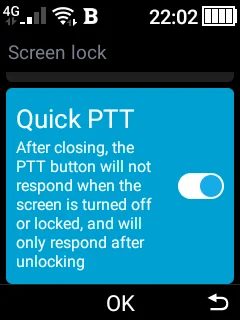
If your firmware has no Quick PTT, VoxDMR includes an optional accessibility service that does the same for your bound PTT and channel keys — enable it in Android’s accessibility settings. Either way, everything still works with the screen unlocked.
Other Hytera radios
Only the P50 has been tested. Other Hytera PoC radios such as the PNC370 and PNC550 may pick up some of these extras or none of them — we don’t know yet. Either way nothing breaks: features that don’t apply simply don’t appear, and the radio works as a normal Android device.
If you have one, the compatibility list explains how to report what you find.
Next steps
- PoC Radios — PTT, knobs and Bluetooth accessories on any PoC radio.
- Radio compatibility list — how other models fare.
- Troubleshooting — if PTT, audio or the LED aren’t behaving.