Talkgroups
The talkgroup picker is where you spend most of your time in VoxDMR. This page covers selecting a talkgroup, building up your favorites list, the live activity indicator, private calls, and renaming talkgroups with custom aliases.
Per-profile. Favorites and aliases are scoped to the active profile. Switching to a different profile loads its own list. See Server Profiles.
The picker
The picker is the left panel of the main window. Layout, top to bottom:
- Search field:
Search talkgroups or enter ID…. Auto-focused on launch. - Sections appear as muted grey headers, only when they have rows to show:
- DMR ID — when you’ve typed a numeric ID that isn’t already in favorites. Two cards: Use {id} as Talkgroup and Use {id} as Private call.
- Favourites — your saved talkgroups, with the activity indicator.
- Results — database matches from the BrandMeister CSV (only when you’re searching and BrandMeister-connected).
Click a row and VoxDMR immediately sends a subscription update to the server.
Selecting a talkgroup
There are four ways to put a talkgroup on the air:
From your favorites. Click any favorite row.
From a search result. Start typing — results matching by name or ID appear under Results. Click one to switch.
By exact ID. Type a numeric ID. The DMR ID section shows up with Use {id} as Talkgroup (and Private call, see below). Click the talkgroup card. This works for IDs the database doesn’t know about — regional or private TGs, or Homebrew-network TGs that aren’t in the BrandMeister CSV.
From the keyboard. With the search field empty, ↑ / ↓ highlight a favorite and Enter activates it.
Marking a talkgroup as a favorite
Each search result has a ★ button next to the name. Click it to add the TG to favorites. The row drops out of search results and into the favorites list.
If the talkgroup you want isn’t in the bundled CSV (custom, regional, or another network’s), select it by ID first; once it’s active, star it.
Managing favorites
Click a favorite to make it active. Hover a favorite row and a small action strip reveals on the right:
- 📡 Radar — add or remove this favorite from the scan rotation (see Scanning talkgroups).
- ✏️ Rename — open the rename dialog (also available by right-click).
- 🗑 Delete — remove from favorites. The first click arms an inline Confirm / Cancel; it auto-cancels if you hover away, leave the list, or press Esc.
A favorite’s kind — talkgroup or private call — is fixed when you save it. There’s no lock/private toggle on the row; to switch a saved favorite between the two, delete it and re-add it as the kind you want (see Private calls).
To reorder, hold the left mouse button on a favorite and drag it up or down. Drop on the row where you want it. The new order saves automatically.
Keyboard shortcuts on the highlighted favorite:
| Key | Action |
|---|---|
| ↑ / ↓ | Move highlight up or down |
| Enter | Activate (subscribe to) the highlighted TG |
| Alt + ↑ / ↓ | Reorder up or down |
| Delete | Remove from favorites |
| Esc | Cancel an in-progress drag |
Renaming talkgroups
You can give any talkgroup a custom name that overrides the database. The alias is per-profile — your BrandMeister profile and your TGIF profile can each give 91 a different label.
Right-click any favorite or search result and the Rename talkgroup modal appears:
- Official name from the database is shown for reference (or
—if unknown). - Custom name field — type your alias here.
- Reset — only enabled when an alias is already set; clears it and falls back to the official name.
- Cancel / Save.
The alias is used everywhere the TG is shown: favorites list, search results, footer (“TG 91 · World-wide”), and the call card.
Useful for:
- Homebrew TGs that aren’t in the BrandMeister CSV — give them a recognisable name once and never look them up again.
- Local nicknames — “Coffee net” instead of
91, “Dad” instead of a private-call ID. - Multi-language shacks — rename
268to “Portugal” or “Portuguesa” depending on which profile you’re in.
The picker
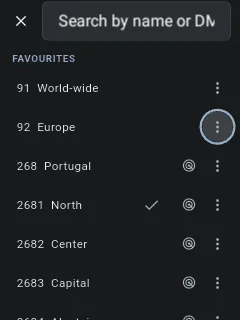
The talkgroup picker on Android is a bottom sheet opened from the TG badge in the AppBar of the PTT screen (top right; it shows No TG if none is selected, or TG {id} otherwise).
Layout:
- Sticky search field at the top —
Search by name or DMR ID…. - DMR ID section when you’ve typed digits-only — two cards: Use {id} as talkgroup and Use {id} as private call, each with a star toggle.
- FAVOURITES section — your saved TGs (only when search is empty).
- ALL TALKGROUPS / RESULTS — database rows or search matches.
Tap a row to subscribe; the sheet closes and the AppBar updates.
Marking a favourite
Tap the ★ on any row to save (or unsave) the TG to favorites. The sheet stays open so you can star several without reopening it.
Reordering favourites
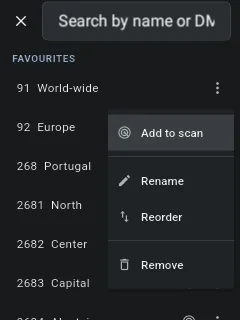
Favourites keep the order you put them in. To rearrange them, open a favourite row’s overflow menu (⋮) → Reorder — the list enters reorder mode and each row grows a drag handle. Drag a row by its handle to a new spot, or move the grabbed row with Up / Down and drop it with OK (the hint reads Up/Down to move · OK to drop). The new order saves automatically.
Renaming talkgroups
Long-press any TG row in the picker — favorite, search result, or one of the Use {id} as… cards. The Rename talkgroup {id} dialog opens:
- Official: {csv_name} is shown for reference.
- Custom name field, max 48 chars.
- Reset — clears the alias and falls back to the official name.
- Cancel / Save.
The alias is “used everywhere this ID is shown” — same scope as desktop, same per-profile storage.
Private calls
Some DMR IDs are individual users or fixed nodes rather than groups. Calling one of those is a private call in DMR terms — addressed to a single ID, not fanned out to a group.
You always receive calls to your own ID. VoxDMR permanently monitors your own DMR ID alongside whatever talkgroup (or scan rotation) is active, so a private call addressed to you is always received — even while you’re listening to a group. This is automatic; there’s no setting.
Desktop: in the DMR ID section, type the ID and click Use {id} as Private call instead of Talkgroup. Star it to save a private-call favorite — the row label gets a (private) suffix. A favorite’s kind is fixed at save time; there’s no lock toggle to flip a saved talkgroup into a private call.
Android: from the DMR ID section, tap Use {id} as private call. The TG badge in the AppBar shows the private flag, and (if you starred it) the favorite row carries a person icon and (private) suffix.
The activity indicator (below) is suppressed for private-call favorites. BrandMeister still publishes events for those IDs, but the dot would be misleading (you’d see other people’s traffic to that ID, not yours), so VoxDMR keeps it grey.
The activity indicator
Each favorite row has a coloured dot on the left edge. It tells you what’s happening on that talkgroup at a glance:
| Dot | Meaning |
|---|---|
| 🟢 Green | Active talkgroup. What you’re listening to, what your PTT will transmit on. |
| 🟡 Amber | Live activity within the last 30 seconds. Somebody is talking or just finished. The row also shows the speaker (e.g. ← G4ABC John). |
| ⚫ Gray | Idle. No recent traffic. |
The activity feed comes from BrandMeister’s live last-heard stream over a WebSocket. You don’t have to be tuned to a TG to see its dot turn amber.
Callsign & name resolution. The speaker shown on an amber row (
← G4ABC John) comes from VoxDMR’s DMR ID lookup. If you’ve downloaded the optional offline DMR ID database (Settings → DMR IDs on desktop, the DMR ID database screen on Android), IDs resolve to callsigns instantly and offline; otherwise VoxDMR falls back to the radioid.net API, and an ID it can’t resolve shows as the bare number.
BrandMeister only. The live feed is a BrandMeister service. When the active profile is on a Homebrew network (TGIF, FreeDMR, ADN…) the dots stay grey. On Homebrew, the activity feed doesn’t exist; you find out who’s talking by hearing them.
You can disable the dots entirely from Settings → Interface → Live BrandMeister activity dots (desktop) if you’d rather not have the network traffic — it’s purely informational and not needed for RX, TX, or subscribing.
The amber state expires 30 seconds after the last update, so if a Stop event gets lost the dot still clears on its own.
The live feed is read-only and unauthenticated, so no extra setup is needed. If your network blocks
api.brandmeister.network, dots stay grey but everything else (RX, TX, subscriptions) still works.
Scanning talkgroups
Scan lets VoxDMR watch several of your favourites at once instead of sitting on one talkgroup. Flag the favourites you want in the rotation, arm scan, and the app locks onto the first one that goes active, plays it, briefly holds to catch the reply, then resumes watching the rest.
- First-come wins. Once scan locks onto a talkgroup, a later call on another scanned TG is ignored until the lock releases.
- Your own DMR ID always wins. VoxDMR permanently monitors your own ID on top of the scan list, so a private call to you interrupts a locked group call.
- PTT follows the lock. While scan is armed, keying PTT transmits to the locked talkgroup (or the last one you heard, if scan is idle).
Session state. Whether scan is armed is not saved per profile in this version — it starts disarmed each run. Your per-favourite scan flags and the hang time are remembered.
Flagging favourites for scan
Each favourite row carries a small radar toggle in its hover action strip, alongside rename and delete. Arm and disarm scan from the radar control on the call card. While it’s searching the icon breathes; it goes solid when locked or off. The card reads Scanning… while searching and Scan ▸ <tg> once locked.
Open the talkgroup picker and use a favourite row’s overflow menu → Add to scan / Remove from scan; flagged favourites show a radar badge. Arm and disarm scan from the scan control on the PTT call card (in the nav drawer on compact PoC screens). In car mode a colour-coded badge shows the state — Scanning…, Scan ▸ <tg>, or Hold ▸ <tg> during the hang window; tap it to exit scan.
Replying and parking
- Reply to lock in. Keying PTT during the hang window commits to that TG and turns scan off, so your QSO stays put.
- Exit and park. Tap the scan control while a call is playing to stop scan and stay on the talkgroup you’re hearing, audio uninterrupted.
Scan hang time
How long scan stays parked on a talkgroup after a call ends before it resumes — range 0–30 seconds, default 4 s (0 = resume immediately). Global, not per-profile; remembered across reconnects.
Set it on the Scan card in Settings → Interface.
Set it in Settings → Scan → Hang time.
One at a time. If two scanned talkgroups are busy at the very same moment you may briefly hear a bit of the second before the lock settles — Rewind frames don’t tag which group they belong to.
For the bindable scan / next / prev-talkgroup keys see PTT Modes; Homebrew static talkgroups play scanner-style through the same machinery — see Server Profiles.
Switching while transmitting
If you press PTT and then pick a different talkgroup, VoxDMR finishes your transmission on the old TG before subscribing to the new one. You won’t accidentally key up on the wrong group.
On Android, switching is hard-blocked while you’re keyed: while you hold PTT the picker is dimmed and a favourite tap, hardware next/prev key, or rotary-knob detent won’t re-point the active talkgroup. Nothing is queued — release, then switch.
Where favorites and aliases are stored
Favorites and per-profile aliases live inside each profile’s section of config.toml on desktop, and inside the per-profile config blob on Android. They follow you across profile switches but aren’t shared between profiles. See Server Profiles.
Next steps
- Server Profiles — keep multiple networks side by side.
- PTT Modes — push-to-talk vs toggle, and rebinding the PTT key.
- Audio Settings — input/output devices, gain, level meter.
- Troubleshooting — connection, audio, and firmware issues.